
Even seasoned video creators and educators often treat Chrome extensions as an afterthought, a small add-on grabbed quickly and forgotten. But these compact tools can turn your browser into a full-featured tutorial studio, or quietly expose your recordings and data to serious risk. Most creators never look past the install button. This guide changes that. You’ll get a clear picture of what Chrome extensions are, how they work under the hood, which ones are worth your time for video and education work, and how to use them without putting your workflow or privacy at risk.
Table of Contents
Key Takeaways
| Point | Details |
|---|---|
| Customize your Chrome | Chrome extensions let you add powerful new features, like easy screen recording, directly into your browser. |
| Review permissions | Always check extension permissions and reviews before installing, especially for tools that access your screen or files. |
| Prioritize security | Choose extensions built with Manifest V3 and keep them updated to protect your data. |
| Leverage the right tools | The best screen recording extensions for educators and creators simplify video production and sharing. |
What is a Chrome extension?
Let’s start with the basics. A Chrome extension is a software module that customizes and enhances the Google Chrome browser by adding new functionality. Think of it as a plug-in for your browser, a small program that sits inside Chrome and changes what it can do.
For video creators and educators, this matters a lot. Without extensions, Chrome is a capable browser but not a production tool. With the right extensions, it becomes something far more useful. You can record your screen, annotate slides in real time, capture your webcam alongside your desktop, and share finished clips without ever opening a separate app.
“Extensions are small software programs that customize the browsing experience. They enable users to tailor Chrome functionality and behavior to individual needs or preferences.” — Google Chrome Help
The Chrome Web Store overview shows just how broad this ecosystem is, with extensions covering everything from productivity and accessibility to media creation and developer tools. For content creators, the most relevant categories include:
-
Screen recording extensions that capture your tab, window, or full desktop
-
Annotation tools that let you draw, highlight, or add text directly on screen
-
Video editing add-ons that trim, caption, or export recordings from the browser
-
Sharing and collaboration tools that push finished videos to Google Classroom, Slack, or cloud storage instantly
The real value for educators and trainers is speed. You don’t need to switch between apps, export files manually, or learn complex software. A well-chosen extension keeps your entire workflow inside one window. That’s why browser recording tools have become so popular with teachers, course creators, and anyone who needs to produce tutorial content quickly and consistently.
Key components that power Chrome extensions
Now that you know what a Chrome extension is, let’s look under the hood at what makes them work.
Extensions are installed from the Chrome Web Store and consist primarily of a manifest.json file that defines the extension’s name, version, permissions, icons, and components. Every extension is essentially a bundled folder of files, and the manifest.json is the blueprint that tells Chrome how to run it.
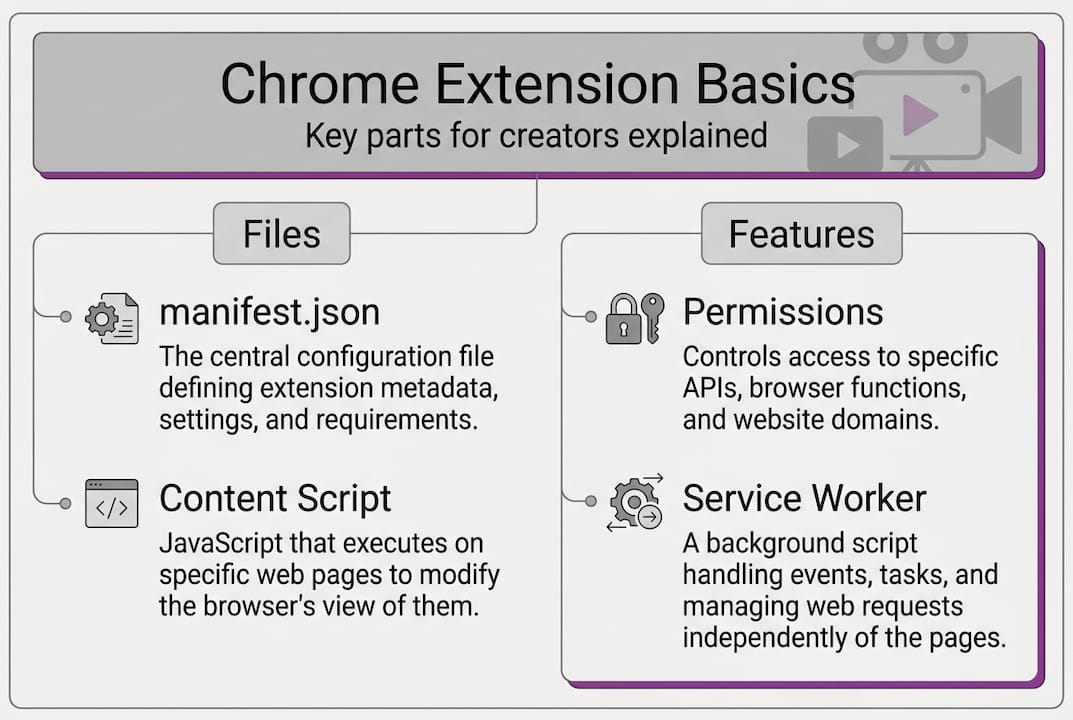
Here’s a quick breakdown of the core files you’ll find inside most extensions:
| Component | What it does |
|---|---|
| manifest.json | Defines the extension’s identity, permissions, and structure |
| Service worker | Runs background logic without a persistent page open |
| Content scripts | Inject JavaScript or CSS directly into web pages |
| Popup UI | The small window that appears when you click the extension icon |
| Options page | Settings page where users can configure the extension |
Core components include the service worker for background logic, content scripts that inject code into pages, and the popup or options UI that you interact with directly. For video tools, this architecture is what allows an extension to access your screen, activate your microphone, or inject a recording toolbar into any page you visit.

Permissions are the part that deserves your full attention. When an extension requests access to your tabs, your file system, or your camera, it’s doing so through the permissions listed in the manifest. The Manifest V3 update details explain how Chrome’s latest standard tightened these controls, moving from persistent background pages to service workers and adding stricter rules around what extensions can access.
For creators, the three components that matter most are:
-
Permissions: Control what data and browser features the extension can reach
-
Content scripts: Allow the extension to interact with the pages you’re recording or annotating
-
Service worker: Keeps the extension functional in the background while you work
Understanding these pieces helps you make smarter choices. When you see a permission request, you’ll know exactly what it means.
Security, privacy, and the realities of using extensions
Understanding the inner workings sets the stage for a crucial question: are Chrome extensions actually safe for creators who depend on them?
The honest answer is: it depends entirely on which extensions you choose. Permissions declared in the manifest allow access to APIs like tabs, storage, and activeTab. High-risk permissions like "<all_urls>` enable an extension to read and change data on every site you visit. For a screen recorder, some level of access is necessary. But an annotation tool asking for access to all your browser data is a red flag.
Creators should pay special attention to these permission types:
-
Screen capture access (legitimate for recording tools, but verify the source)
-
Access to all URLs or all sites (rarely needed for simple video tools)
-
File system access (needed for saving recordings, but check what else it touches)
-
Camera and microphone permissions (standard for facecam recording, but confirm the extension’s privacy policy)
Pro Tip: Before installing any extension, click “Details” on its Chrome Web Store listing and scroll to the “Permissions” section. Read each one. If a screen recorder is asking for access to your passwords or browsing history, close the tab.
Manifest V3, required since 2023, uses service workers and stricter security controls to reduce some of these risks. But it doesn’t eliminate them. Extensions can still be purchased by new owners who quietly update permissions, a practice called permission creep. Reviewing your installed extensions regularly is not optional. It’s part of your workflow.
For a deeper look at chrome security risks, independent security researchers have documented how even popular extensions can become vectors for data collection after ownership changes.
Popular Chrome extensions for video tutorials and education
With security in mind, let’s look at which Chrome extensions are actually moving the needle for video professionals and educators.
Screen recording extensions like Screencastify, Loom, and Screenity provide capture, annotation, and editing directly in the browser. Screencastify integrates with Google Classroom, making it a go-to for teachers. Loom has built a user base of 14 million or more, largely because of its instant share links and simple interface. Screenity is a free, open-source option with solid annotation features.
Here’s a quick comparison to help you choose:
| Extension | Best for | Key feature | Privacy approach |
|---|---|---|---|
| Screencastify | Educators | Google Classroom sync | Cloud storage |
| Loom | Teams and async video | Instant share links | Cloud-based |
| Screenity | Budget-conscious creators | Free, open-source | Local + cloud |
| RecordMate | Tutorial and demo creators | Auto zoom and panning | Local processing |
When evaluating any screen recorder in Chrome, look for these qualities:
-
Capture quality: Does it record in HD? Can it capture system audio?
-
Editing tools: Can you trim, annotate, or add captions without leaving the browser?
-
Privacy controls: Is your footage processed locally or uploaded to a third-party server?
-
Export options: Can you export to the formats your audience actually uses?
Pro Tip: For educators creating walkthroughs, record a short 2-to-3-minute segment at a time rather than one long video. Shorter clips are easier to edit, easier for students to rewatch, and faster to share. Use your extension’s annotation tools to highlight key steps as you go.
Common pitfalls and expert tips for extension users
Equipped with real-world extension examples, you’re ready to sidestep costly mistakes and maximize the benefits of your tools.
Extensions are disabled in Incognito mode unless you allow them, and corrupted extensions can often be repaired or removed through Chrome’s extensions page. These are two things most creators only discover when something breaks mid-recording. Here are five mistakes to avoid:
-
Installing too many extensions: Each one adds overhead. Keep only what you actively use.
-
Ignoring permission updates: When an extension updates, its permissions can change. Check the changelog.
-
Using extensions in Incognito without reviewing them first: Only enable trusted, well-reviewed extensions in private browsing.
-
Skipping reviews after a Chrome update: Browser updates can break extension compatibility. Test your recording tools after every major Chrome release.
-
Forgetting about ownership transfers: Popular extensions get acquired. A tool you trusted last year may have new owners with different data practices.
Pro Tip: Set a monthly reminder to open chrome://extensions and review what’s installed. Disable anything you haven’t used in 30 days. This single habit prevents most permission creep issues.
“Supply chain risks via ownership transfers are one of the most underreported threats in the Chrome extension ecosystem. Users rarely notice when a trusted tool changes hands.” — Chrome security researchers
If a recording extension stops working after a Chrome update, start by clicking “Repair” on the extensions page. If that doesn’t work, uninstall and reinstall from the Chrome Web Store. Most issues resolve with a clean reinstall.
Why Chrome extensions are the unsung productivity engine for creators (but with a hidden cost)
Here’s a perspective drawn from long-term experience in creative video workflows: Chrome extensions have done more to democratize professional video creation than almost any other technology shift in the past decade. A teacher with no video production background can now record, annotate, and share a polished lesson in under five minutes. That’s remarkable.
But most creators treat extensions like disposable utilities. Install, use, forget. That approach works until it doesn’t. Long-term efficiency depends on treating your extension stack the way you treat your equipment: with regular maintenance, intentional selection, and periodic review.
The browser evolves fast. Manifest V3 was a meaningful step forward, but new vulnerabilities emerge as extensions grow more capable. The creators who get the most out of these tools are not the ones who install the most. They’re the ones who install wisely, review often, and stay informed. Extension hygiene is not a technical skill. It’s a professional habit.
Elevate your tutorials with smarter Chrome extensions
Ready to put these insights into action? Here’s how you can get started with tools designed for creators like you.
Choosing the right Chrome extension for your recording workflow is not just about features. It’s about trust, privacy, and how well the tool fits your actual process. If you want a solution built specifically for tutorial and demo creators, RecordMate screen recorder is worth a close look.
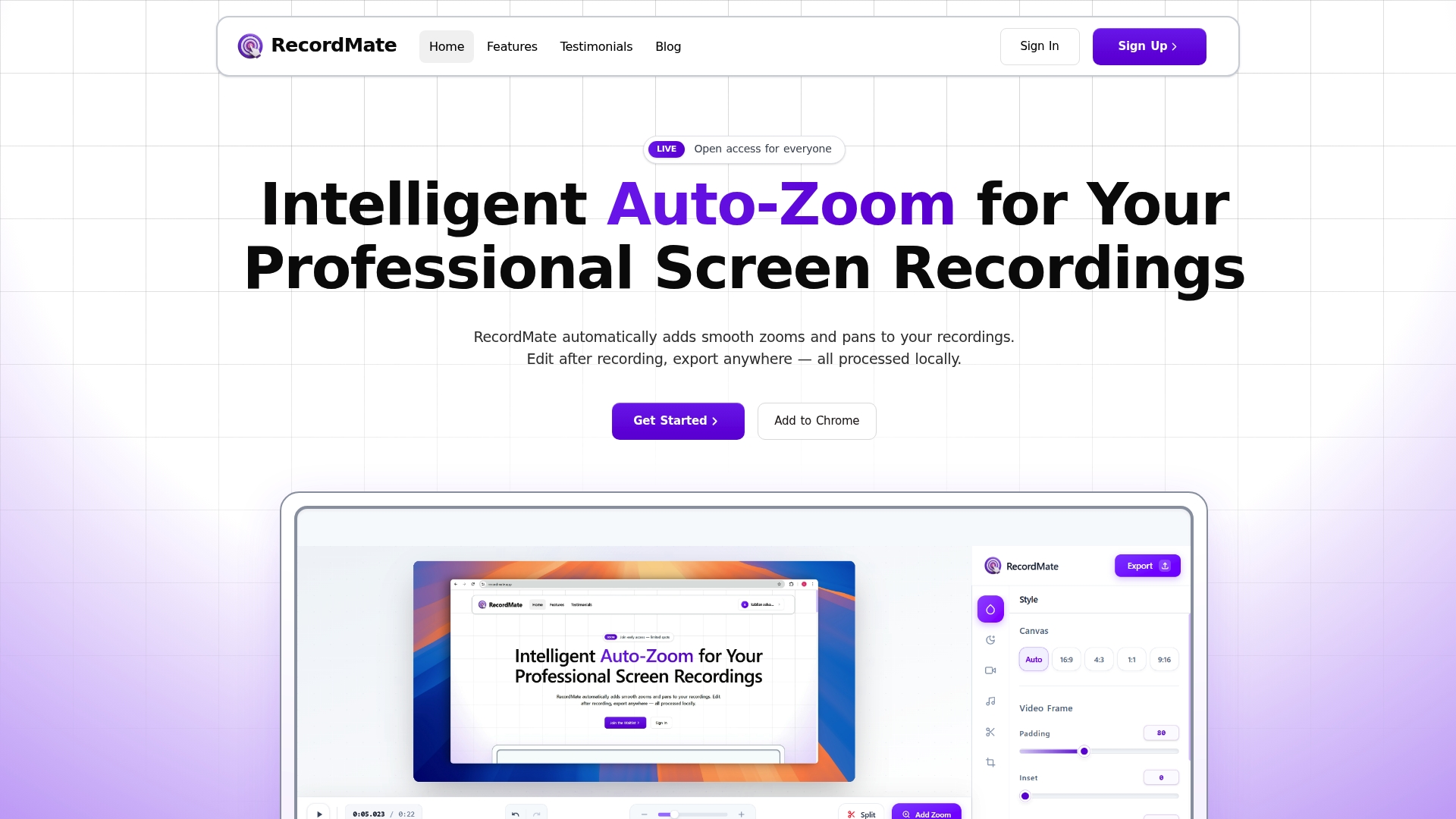
RecordMate processes everything locally on your device, so your recordings never touch an external server. Its automatic zoom and panning follows your cursor, giving your tutorials a polished, cinematic feel without any manual editing. It also supports facecam, voiceovers, background music, and multi-format exports. If you’re serious about creating professional tutorial content, the browser screen capture tool at RecordMate is a practical next step.
Frequently asked questions
How do I install a Chrome extension safely?
Always install from the Chrome Web Store, review the permissions listed before confirming, and check recent user reviews for any red flags.
Can Chrome extensions record my screen securely?
Reliable extensions request screen permissions transparently and limit access to what’s needed. Always monitor permissions and keep your extensions updated to reduce risk.
What should I do if an extension stops working after a Chrome update?
Corrupted extensions can often be repaired through Chrome’s extensions page. If repair doesn’t work, uninstall and reinstall the extension from the Chrome Web Store.
Is it possible to use extensions in Incognito mode?
Extensions are disabled in Incognito by default. You can enable specific extensions manually in Chrome’s extension settings, but only do this for tools you fully trust.
What is Manifest V3 and why does it matter?
Manifest V3 uses service workers for background tasks and applies stricter security rules, making extensions safer overall while limiting some older capabilities that were commonly exploited.